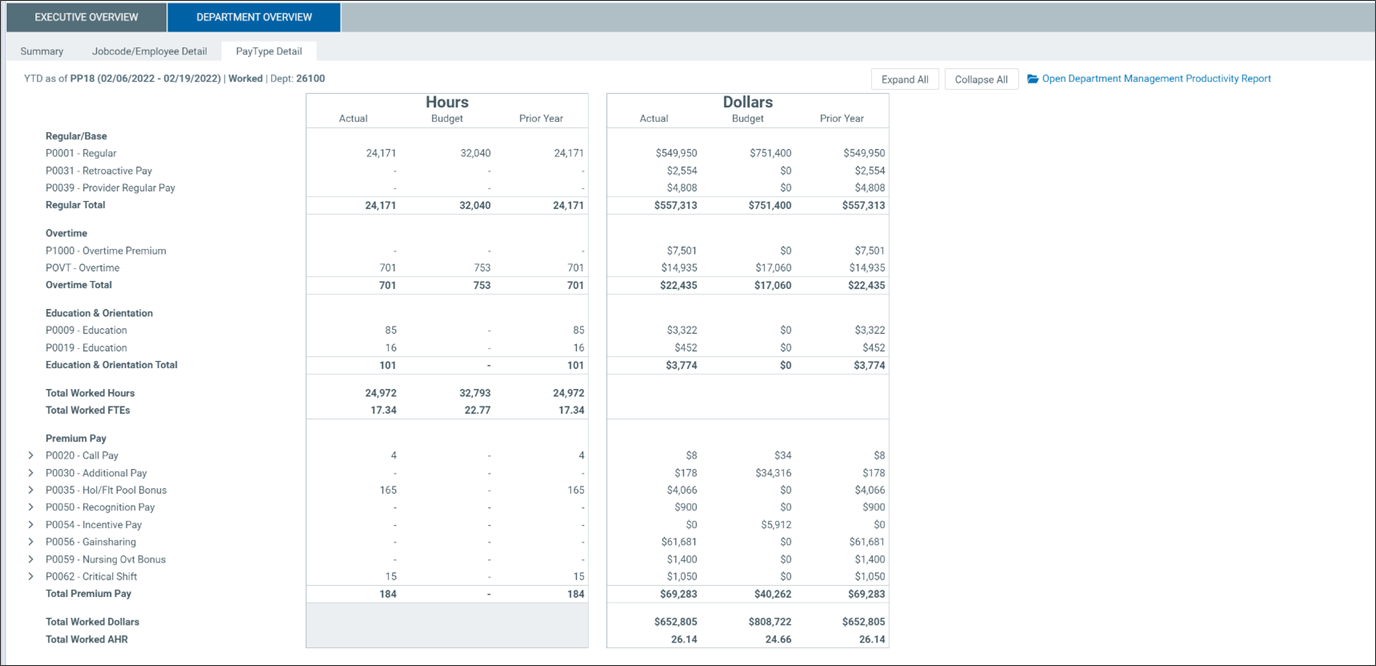
Department Overview tab
This tab displays high-level productivity data for a selected department. The information is organized into the following subtabs:
-
Summary (default view)
-
Jobcode/Employee Detail
-
PayType Detail
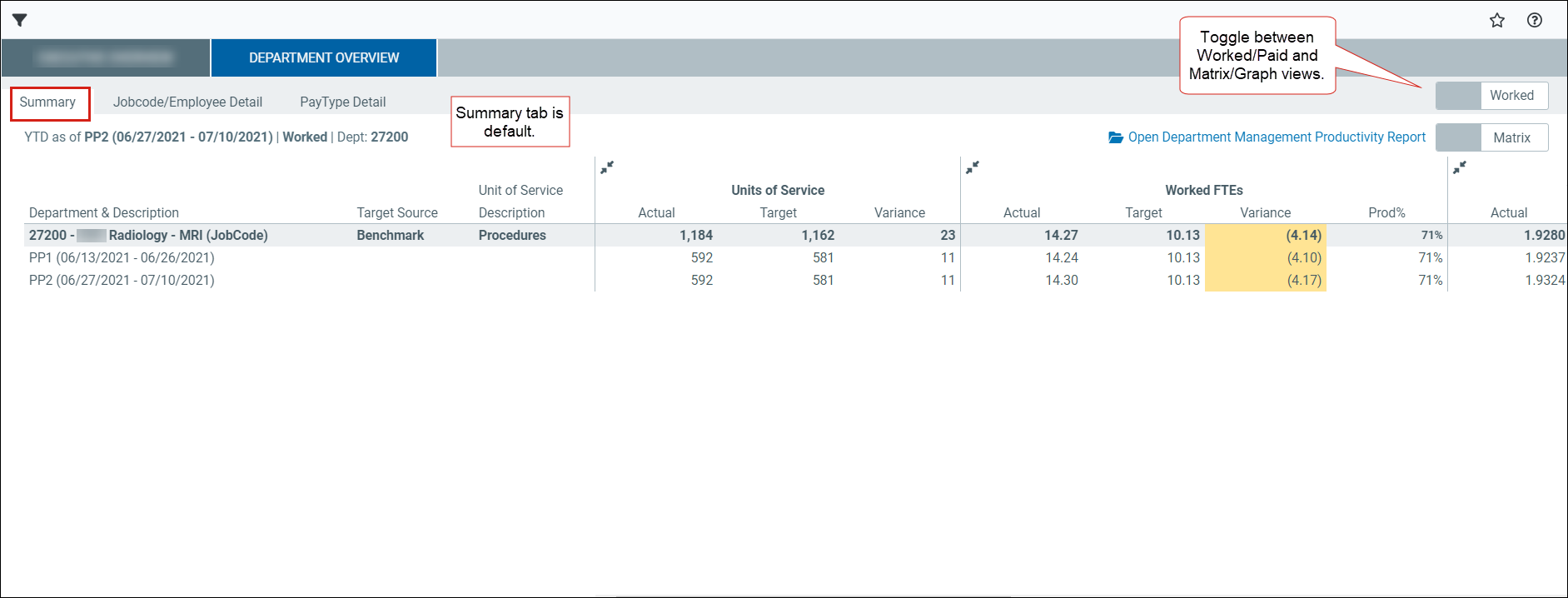
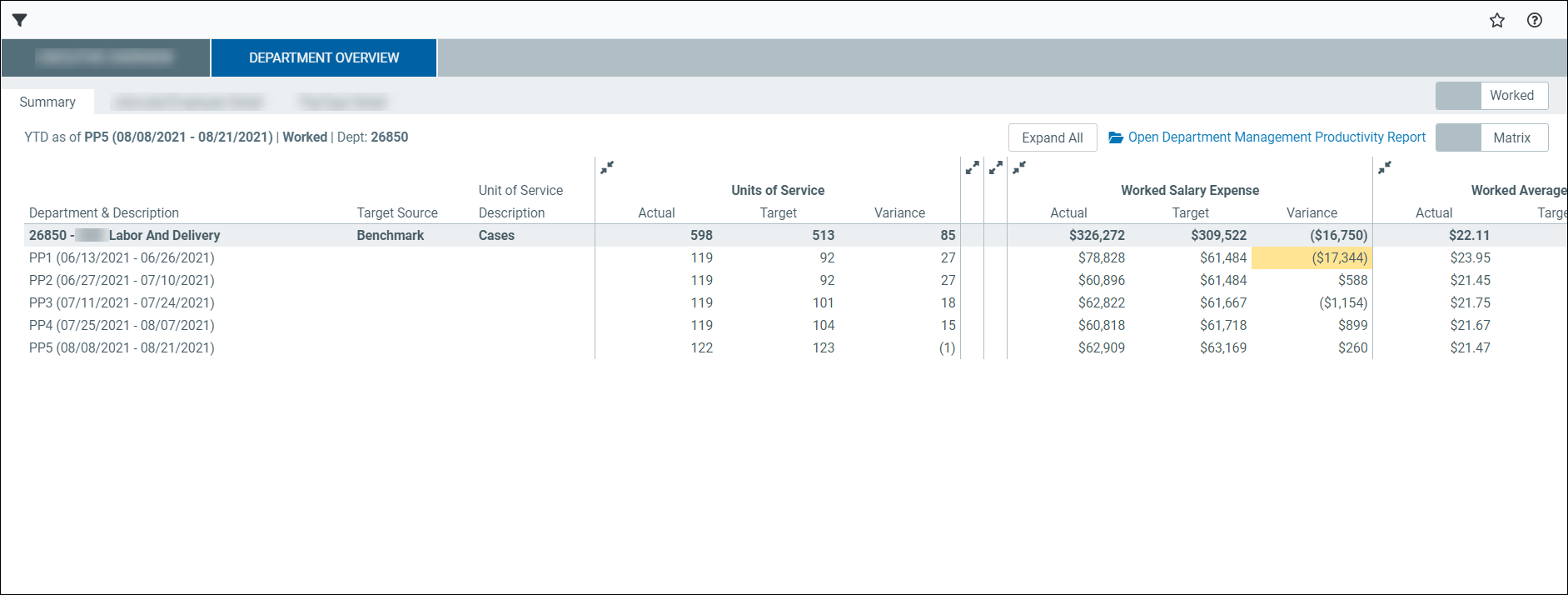
Open the Deparment Overview tab based on your user permissions.
Admin
User role requirement:
-
Productivity Admin
-
Go to Admin > Admin Task Panes > Productivity Admin > Bi-Weekly Productivity Reports > Department Management Productivity Dashboard
-
Select the refresh variables in the Filters panel.
TIP: Update the data any time by changing the refresh variables.
Non-admin
User role requirement:
-
Productivity User
-
Report Subsystem Permissions
-
Go to Main > Open App Menus > Productivity Management > Bi-Weekly Productivity Reports > Department Management Productivity Dashboard
-
Select the refresh variables in the Filters panel.
TIP: Update the data any time by changing the refresh variables.
Summary tab
View summarized productivity data for the selected department. The information on this tab matches the DeptList tab in the Department Management Productivity report.
Matrix view
NOTE: Click the double arrows to collapse or expand a section. Click Expand all to expand all sections.
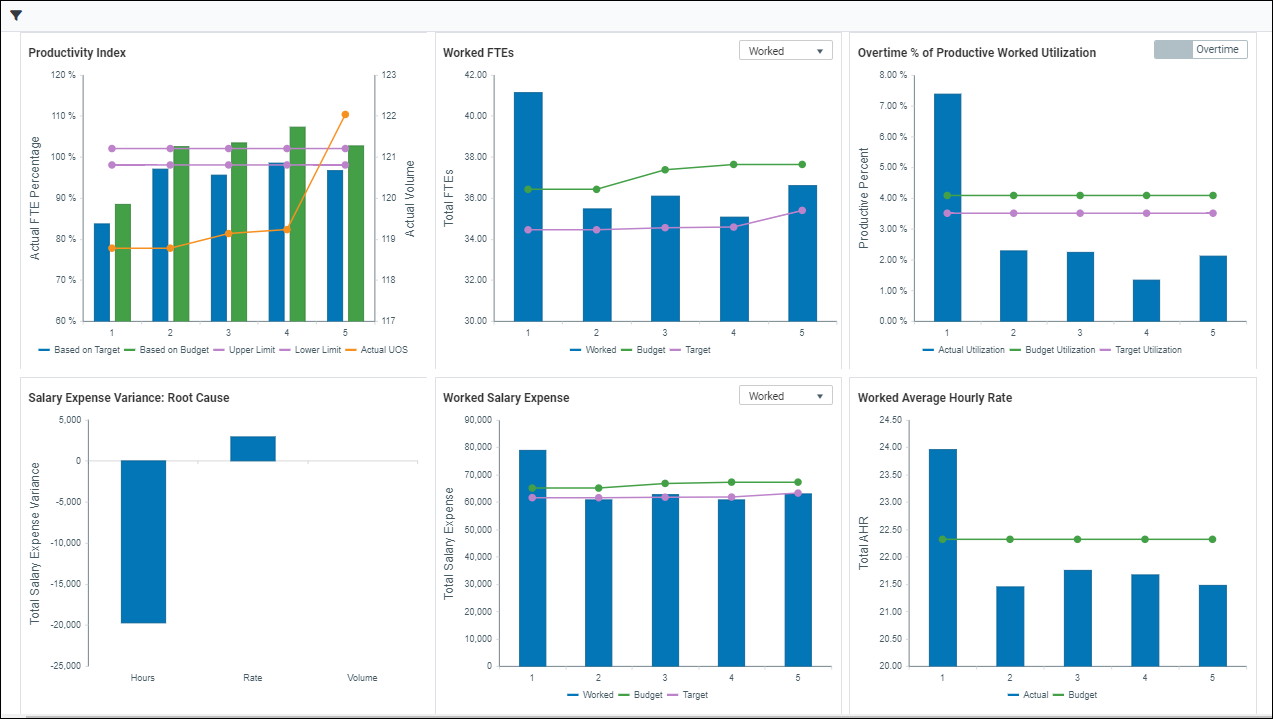
Graph view
Click the Matrix/Graph toggles to view interactive graphs for worked or paid items.
-
Hover over any bar in a graph to view respective information.
-
Click any term in the bottom legend to remove (or display) the data and view specific metrics.
Jobcode/Employee Detail tab
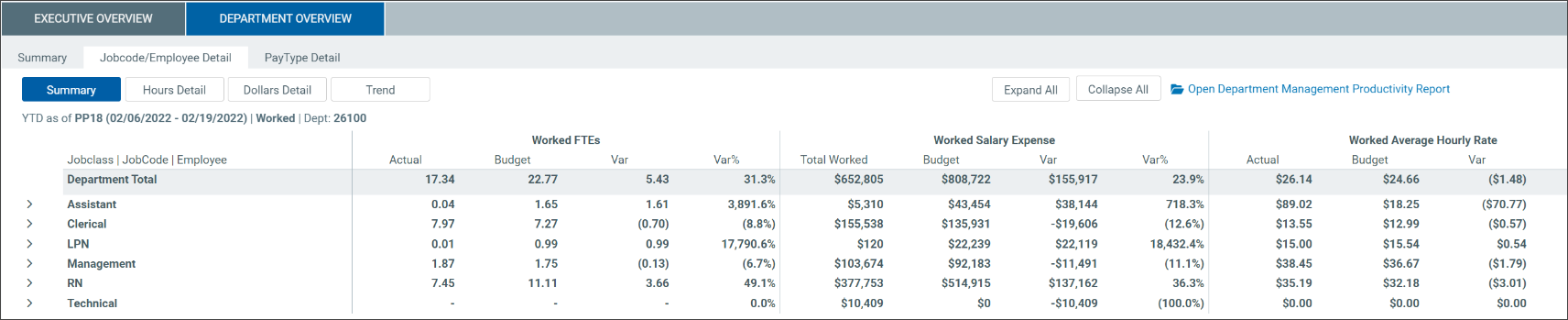
The data in this tab matches the JobCode Detail tab in the Department Management Productivity report. This information is organized into four subtabs: Summary, Hours Detail, Dollars Detail, and Trend.
-
Click the toggle in the right corner to switch between Worked/Paid views.
-
Click Expand All to view all jobcode details. (Non-graphical tabs only.)
PayType Detail tab
The data in this tab matches the PayType Detail tab in the Department Management Productivity report.
-
Click the toggle in the right corner to switch between Worked/Paid views.
-
Click Expand All to view all Premium Pay details. (Default is collapsed.)